Better than Youtube Premium for Free on iPhone - iOS Mods
Download videos and Shorts, block ads, background play, PiP, dislikes and SponsorBlock. For Youtube. No jailbreak.
The YouTube app on iPhone keeps a lot of the good stuff behind Premium. You can't save a video for later, the sound stops the moment you leave the app, there are ads everywhere, and the dislike count has been gone for years.
SKYoutube brings all of that back. It's the YouTube app you already know, with its own settings page added on top, and you install it like any other app. No jailbreak.
This guide covers SKYoutube 0.7.1, built on YouTube 21.29.3. First we'll open its settings, then go through what's worth turning on.
| SKYoutube version | 0.7.1 |
| YouTube version | 21.29.3 |
| Works on | iOS 16 or later |
| Jailbreak | Not needed |
| Languages | English, Arabic, Central Kurdish |
How to open SKYoutube's settings
Open YouTube and tap SKYoutube in the bar at the bottom. That's where your downloads live. Now tap the gear at the top, and you're in.
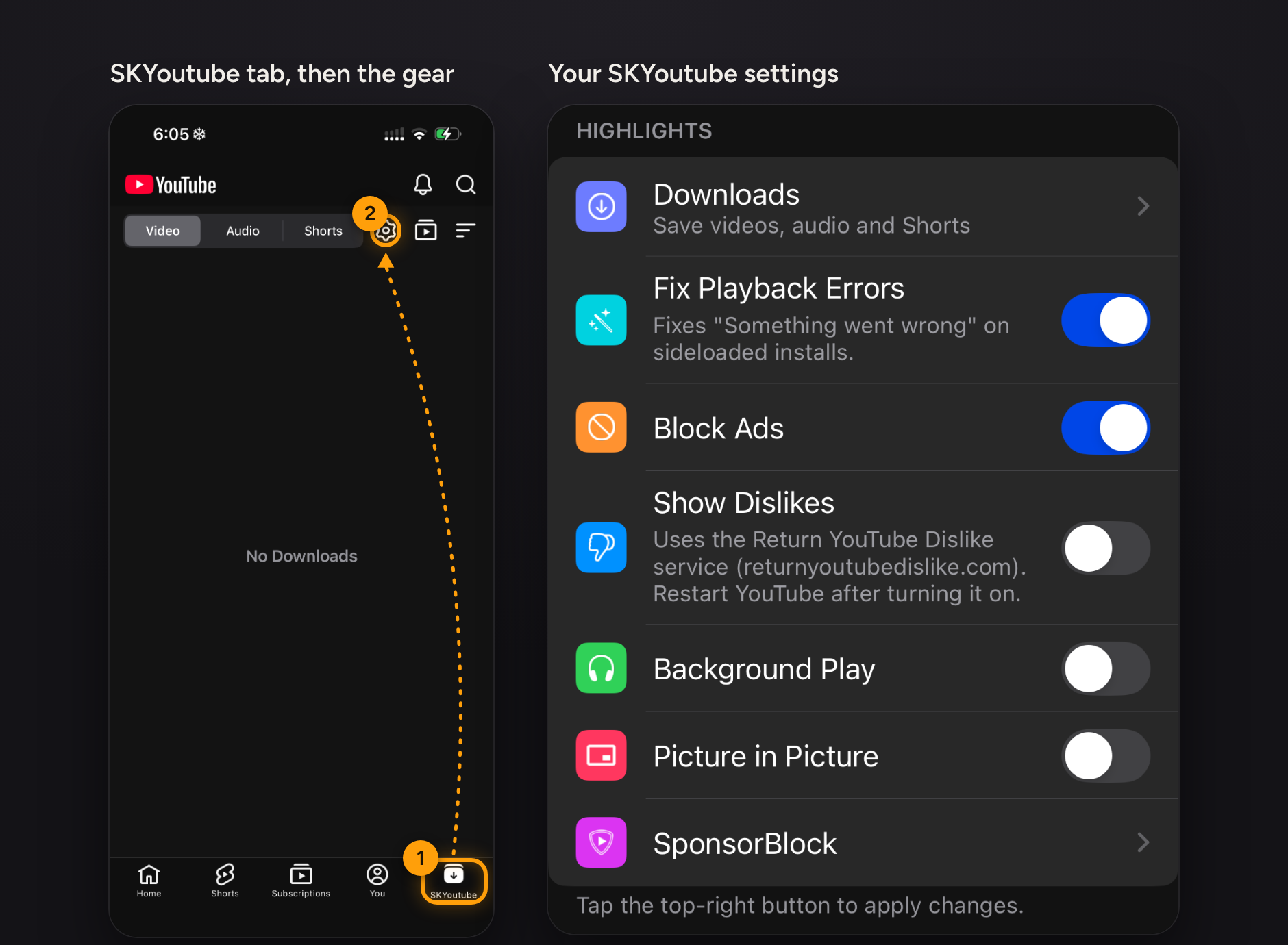
You can also get there from YouTube Settings > SKYoutube, or from the SKYoutube row in your account menu.
One thing before you change anything: after you flip a switch, tap the check mark at the top right to apply it. Some options will ask you to restart YouTube.
Highlights
The first section is Highlights. These are the seven features most people install SKYoutube for, and they're listed below in the same order you see them on screen.
Downloads, Fix Playback Errors and Block Ads work the moment you install. The rest are off until you turn them on.
Downloads
Under every video, at the end of the row with Like and Dislike, there's a Download button. Tap it, choose Download Video or Download Audio, then pick the quality you want.
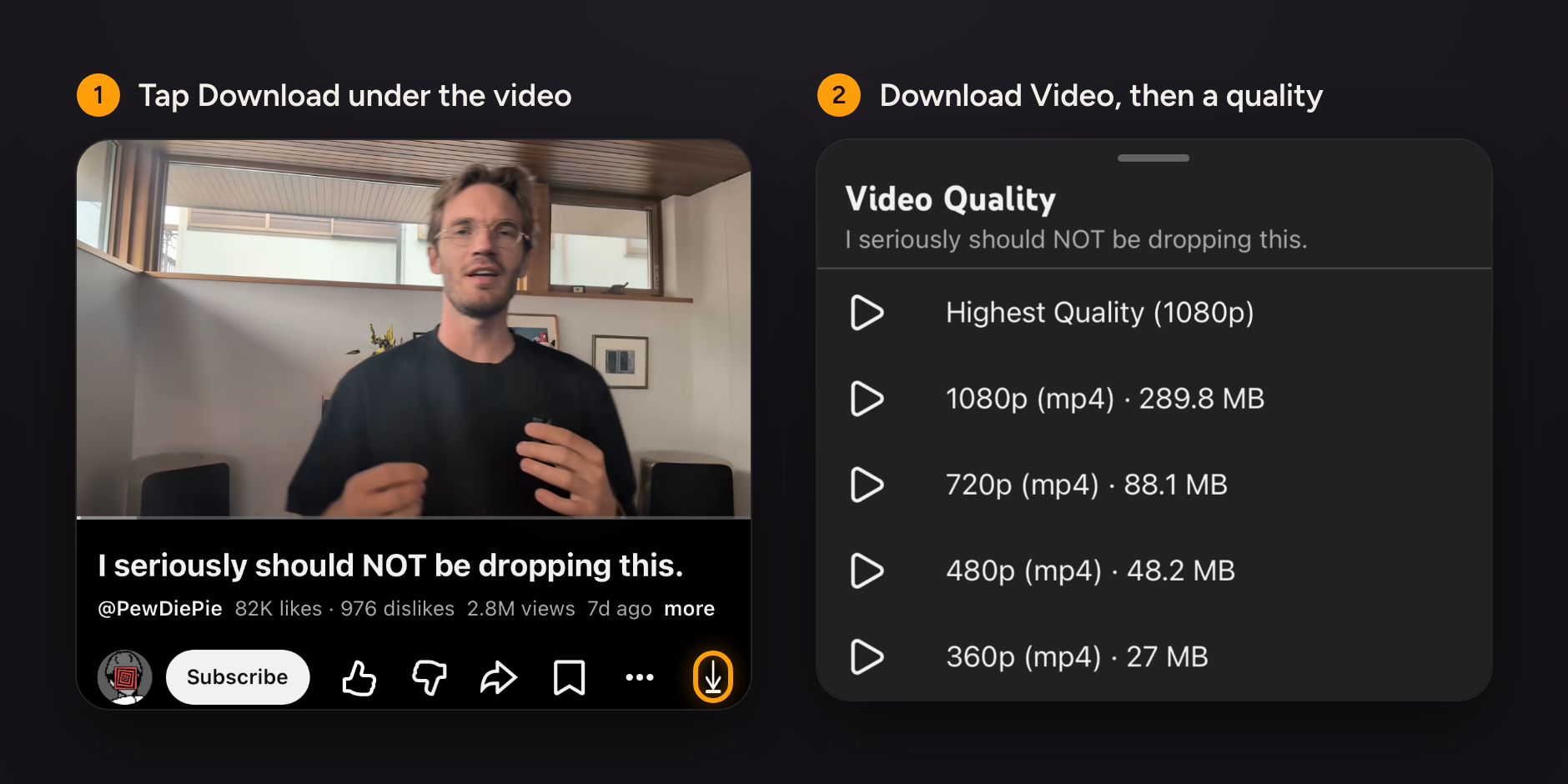
- Downloads go into a queue. You can pause, resume or retry them, and if you close YouTube halfway, the queue picks up where it stopped.
- You can also download from the ... menu on any video in your feed.
- Everything you save shows up in the SKYoutube tab, sorted into Video, Audio and Shorts.
- The same Download menu can also save the video's thumbnail, or copy its title or description.
Fix Playback Errors
If you've used a sideloaded YouTube before, you've probably seen "Something went wrong. Refresh and try again later" where your video should be. This switch fixes that. It's on from the start, so just leave it on.
Block Ads
No more ads before or in the middle of videos, in your home feed, or between Shorts. It also removes the shopping and app cards YouTube pins to some videos. This one is on from the start too.
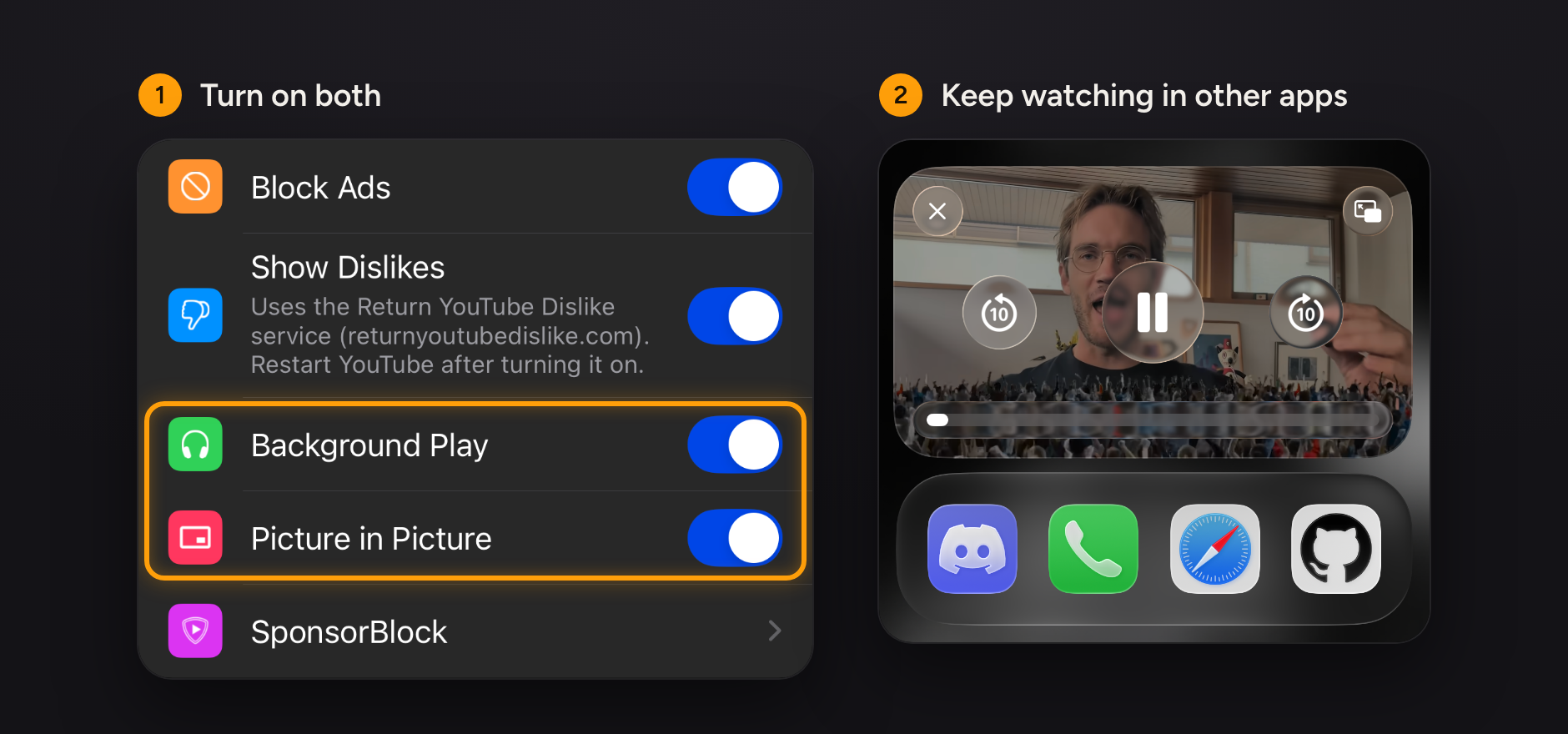
Show Dislikes
Turn on Show Dislikes and restart YouTube. The dislike count shows up right under the video title, next to the likes and views. Open the description and you'll see it there too, in the same tile as the likes.
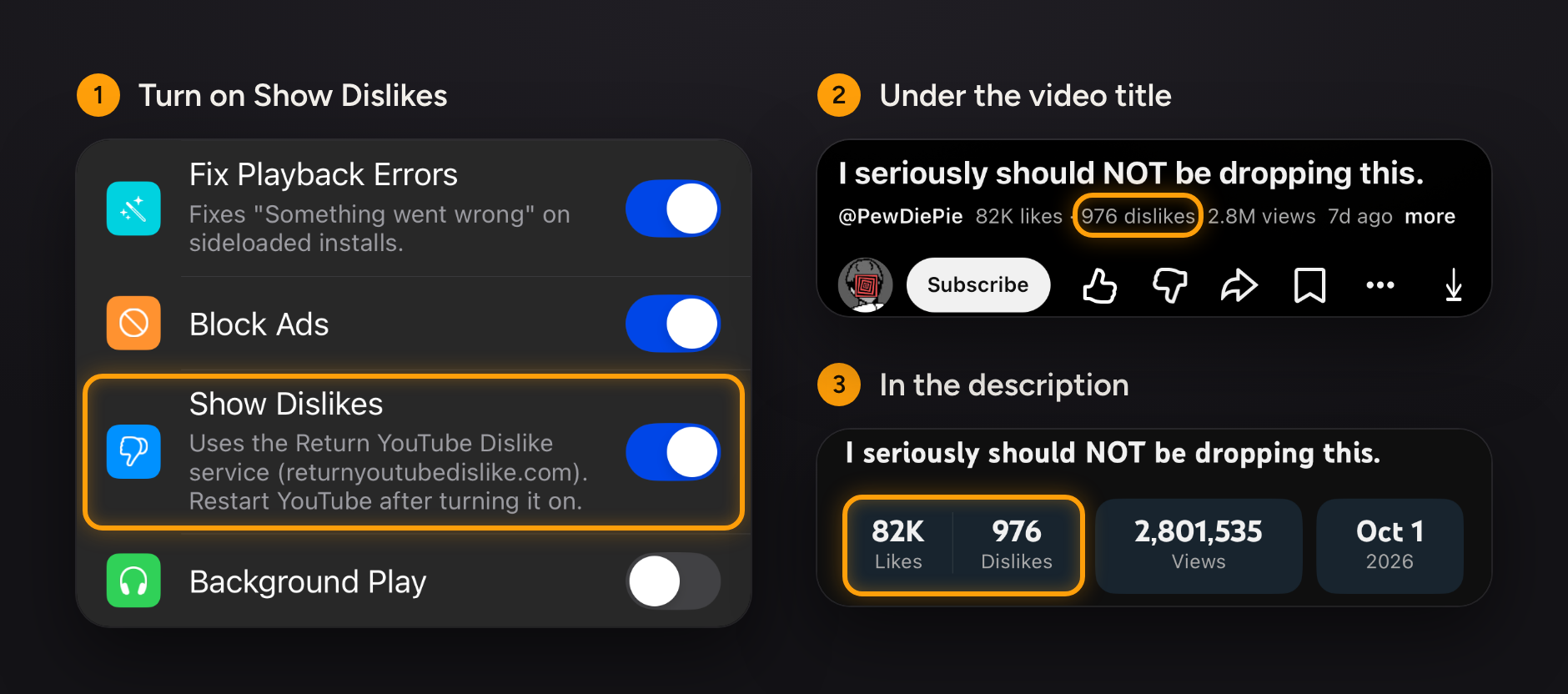
The numbers come from the Return YouTube Dislike project, since YouTube itself stopped showing them.
Background Play and Picture in Picture
These two are off until you turn them on, and most people want both.
Background Play keeps the sound going when you leave YouTube or lock your phone. It's what you want for music, podcasts and long videos.
Picture in Picture turns the video into a small floating window. Go to your home screen while a video is playing and it pops out by itself, so you can keep watching while you answer a message.
SponsorBlock
SponsorBlock skips the parts of a video you didn't come for. Tap SponsorBlock in Highlights and turn on Enable. Then you'll see a list of segment types:
- Sponsor
- Self Promotion
- Interaction Reminder (the "like and subscribe" bits)
- Intermission / Intro
- Endcards / Credits
- Preview / Recap
- Non-Music Section (in music videos)
- Filler
Set each one to Skip, Ask or Off, and pick the color it gets on the progress bar. Out of the box only sponsors are skipped, so turn on the others you want.
When something gets skipped, an Unskip button shows up for a few seconds in case you actually wanted to watch it. If you'd like to hear when a skip happens, turn on Audio Notification.
Your downloads
Everything you download is in the SKYoutube tab. From there you can save a video to Photos, share it, rename it or delete it.
Downloads play in SKYoutube's own player, which has:
- playback speed control
- a sleep timer: 15, 30, 45 or 60 minutes, or at the end of the current track
- a Play Next queue, with autoplay
- a button to open the file in Infuse or VLC if you'd rather watch there
Open Downloads in Highlights and you'll also find backups. Create Backup packs your settings and every downloaded file into one ZIP and saves it to the Files app. Restore Backup brings it all back, which is handy on a new phone or after a reinstall.
On the same page, Import Media adds your own videos and audio to the library, with artwork and subtitles.
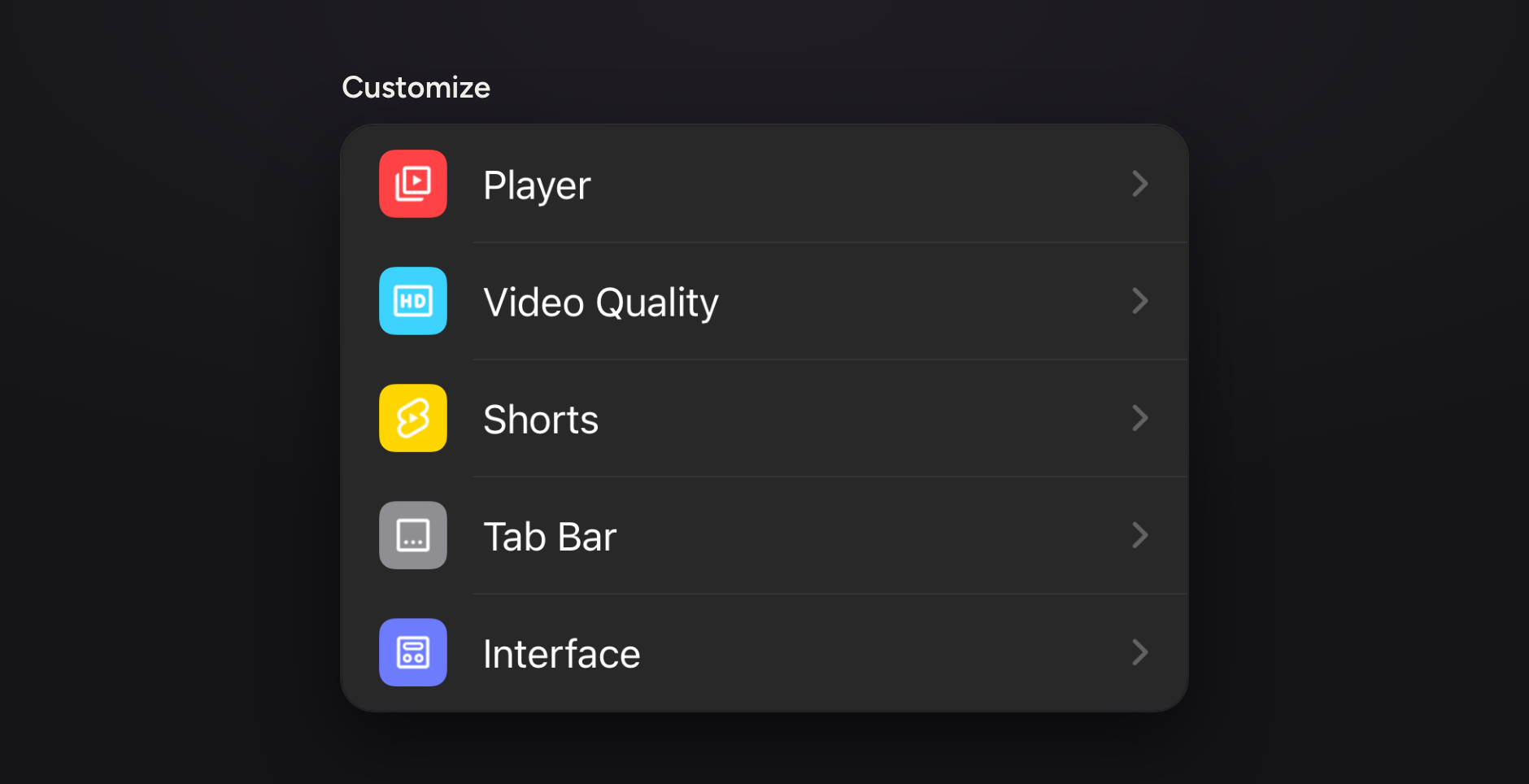
Customize
Under Highlights there's Customize, with five pages. You don't need any of this to get started, but it's where you make YouTube work the way you like.
Player
- Add a loop button and playback speed buttons to the player.
- Swipe on either side of the player to change brightness and volume. You pick which side does which.
- Turn on Hold to Seek and choose how far it jumps, anywhere from 5 to 60 seconds.
- Turn off double tap or "Continue watching", and hide the quick actions.
- Always show the play/pause button or all the controls, remove the dark overlay, and keep the progress bar on screen.
- Hide info cards, the channel watermark, the autoplay and captions buttons, previous and next, end screen videos and related videos.
Video Quality
- Set one default quality for Wi-Fi and another for cellular, from Auto all the way up to 2160p60 (4K at 60 fps).
- Play HD over 3G, 4G and 5G.
- Turn off autoplay.
- Choose how many seconds a double tap skips.
Shorts
- Go to the next Short automatically instead of watching the same one loop.
- Add a progress bar to the bottom of every Short.
- Hide Shorts from your feed completely.
- Hide the pause card, product recommendations and sticker ads.
Tab Bar
- Drag tabs to reorder them, and tap one to rename it.
- Add tabs like Explore, Music, Gaming, Live, History or Playlists.
- Pick which tab YouTube opens on.
- Hide the tab labels.
Interface
- OLED Dark Mode for true black.
- Use the Premium logo, or hide the YouTube logo.
- Hide the status bar, or skip the launch animation.
- Hide the notifications, search and cast buttons, or ask before casting.
- Hide suggested videos, comments and comment previews.
- Use the mini player for every video.
- Hide the Premium popup, the update popup, paid promotion notices, your search history and the topic bar.
- Tap a profile picture to see it full size.
A couple of things live outside these pages. Long-press a comment to copy it. And at the bottom of the settings, Advanced has Bypass Age Restriction, plus options to turn captions off for good or keep them always on.
If something goes wrong
- Videos stop or show an error. Check that Fix Playback Errors in Highlights and Fix Playback & Account Recovery in Advanced are both on. They are by default.
- YouTube won't open. If YouTube closes three times in a row while starting up, SKYoutube goes into Safe Mode: it switches its features off so the app can open, and tells you it did. Look over your settings, then tap Turn Features On.
- No dislikes. Restart YouTube after turning on Show Dislikes.
- Storage is filling up. Tap Clear Cache in Advanced to remove cached files, or turn on Clear on Startup to do it every time YouTube opens.
- You want a clean slate. Tap Restore Defaults to put every setting back the way it was.
Get SKYoutube
That's what YouTube Premium charges for: downloads, no ads, background play and Picture in Picture. On top of that you get things Premium doesn't have, like dislikes, SponsorBlock and a tab bar you can rearrange.
- 10 Best Tweaked Apps for iPhone in 2026 (No Jailbreak) - iOS ModsLooking for the best tweaked apps for iPhone in 2026? The standard App Store offers plenty of great applications, but sometimes you want more features, extra customization options, or access to tools that aren't included in the regular versions.
- Spotify Premium for Free on iPhone: Pro vs V2 Edition - iOS ModsListen to Spotify without ads, unlock unlimited skips, and stream in extreme audio quality on your iPhone. Compare Spotify Pro and Spotify V2 to find your best iOS install.
- How to Enable Developer Mode on iPhone (Fix the Missing Option for Free) - iOS ModsLearn how to enable Developer Mode on iPhone running iOS 16 or later. Follow the standard method, use Apple's official Xcode method on a Mac, or troubleshoot the missing Developer Mode option when installing apps from iOS Mods.