How to Enable Developer Mode on iPhone (Fix the Missing Option for Free) - iOS Mods
Learn how to enable Developer Mode on iPhone running iOS 16 or later. Follow the standard method, use Apple's official Xcode method on a Mac, or troubleshoot the missing Developer Mode option when installing apps from iOS Mods.
If you want to install tweaked apps, emulators, or other apps from iOS Mods, you may need to enable Developer Mode on your iPhone before you can open them.
While some users can find this option directly in Settings, others discover that Developer Mode is missing entirely. If this happens to you, don't worry. You don't need to buy expensive repair software to troubleshoot the issue.
In this guide, we'll explain how to enable Developer Mode, why the option may be missing, and which free methods you can try with or without a computer.
The Standard Way: Enable Developer Mode If It's Visible
If the Developer Mode option is already available on your iPhone, you can enable it directly from Settings.
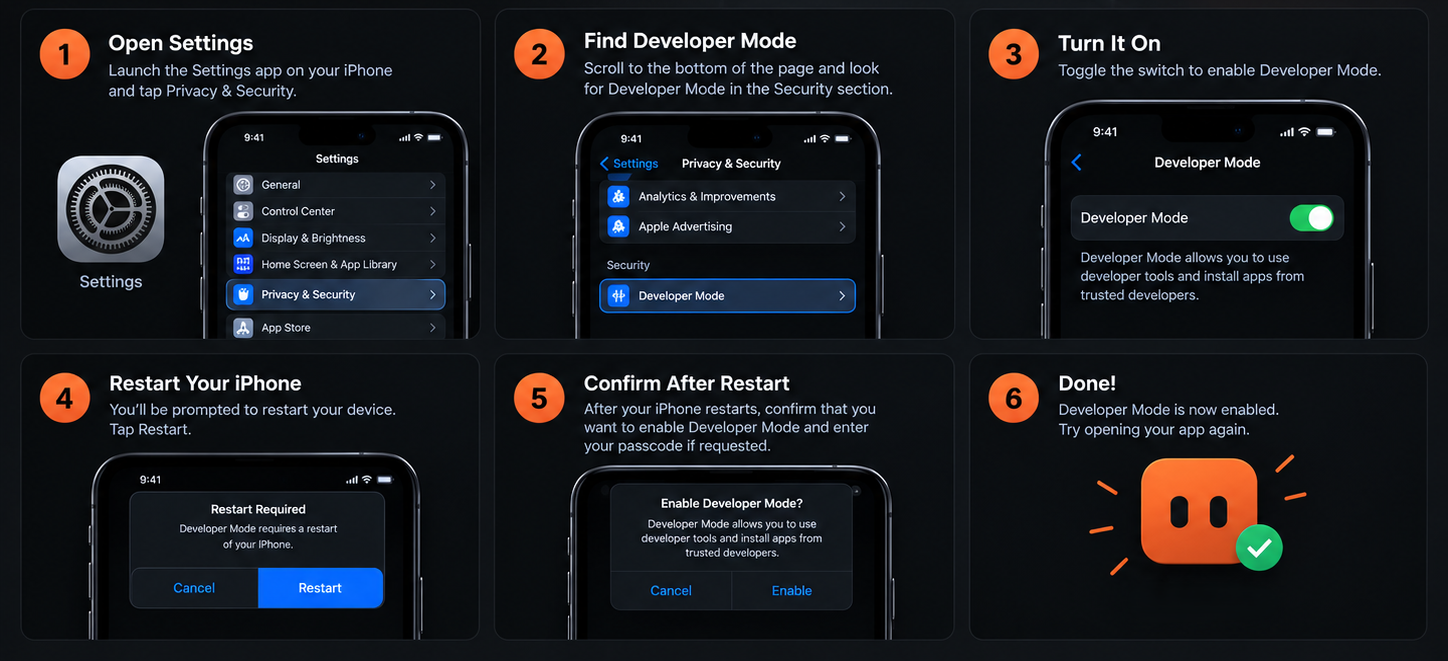
Follow these steps:
- Open the Settings app on your iPhone.
- Tap Privacy & Security.
- Scroll down to the Security section and look for Developer Mode.
- Tap Developer Mode and turn on the toggle.
- When prompted, tap Restart.
- After your iPhone restarts, confirm that you want to enable Developer Mode and enter your passcode if requested.
Developer Mode should now be enabled. Try opening your app again.
If you can't find the option, continue to the next section.
Why Is Developer Mode Missing from iOS Settings?
Developer Mode was introduced in iOS 16 as an additional security measure for running development-signed apps and using developer tools.
If you install apps from iOS Mods and find that Developer Mode is missing, it doesn't necessarily mean something is wrong with your iPhone.
iOS may hide the Developer Mode option until you start pairing your iPhone with development software or install and launch a compatible development build.
The important distinction is that installing an app and triggering the Developer Mode setting are not always the same thing. The result depends on the app's build, signing, and installation method.
If the option isn't visible, try one of the methods below.
The Official Apple Method: Use a Mac with Xcode
If you have access to a Mac, Apple's Xcode tools provide an officially documented way to reveal the Developer Mode setting. You don't need to purchase a paid Apple Developer Program membership just to use Xcode for basic development tasks.
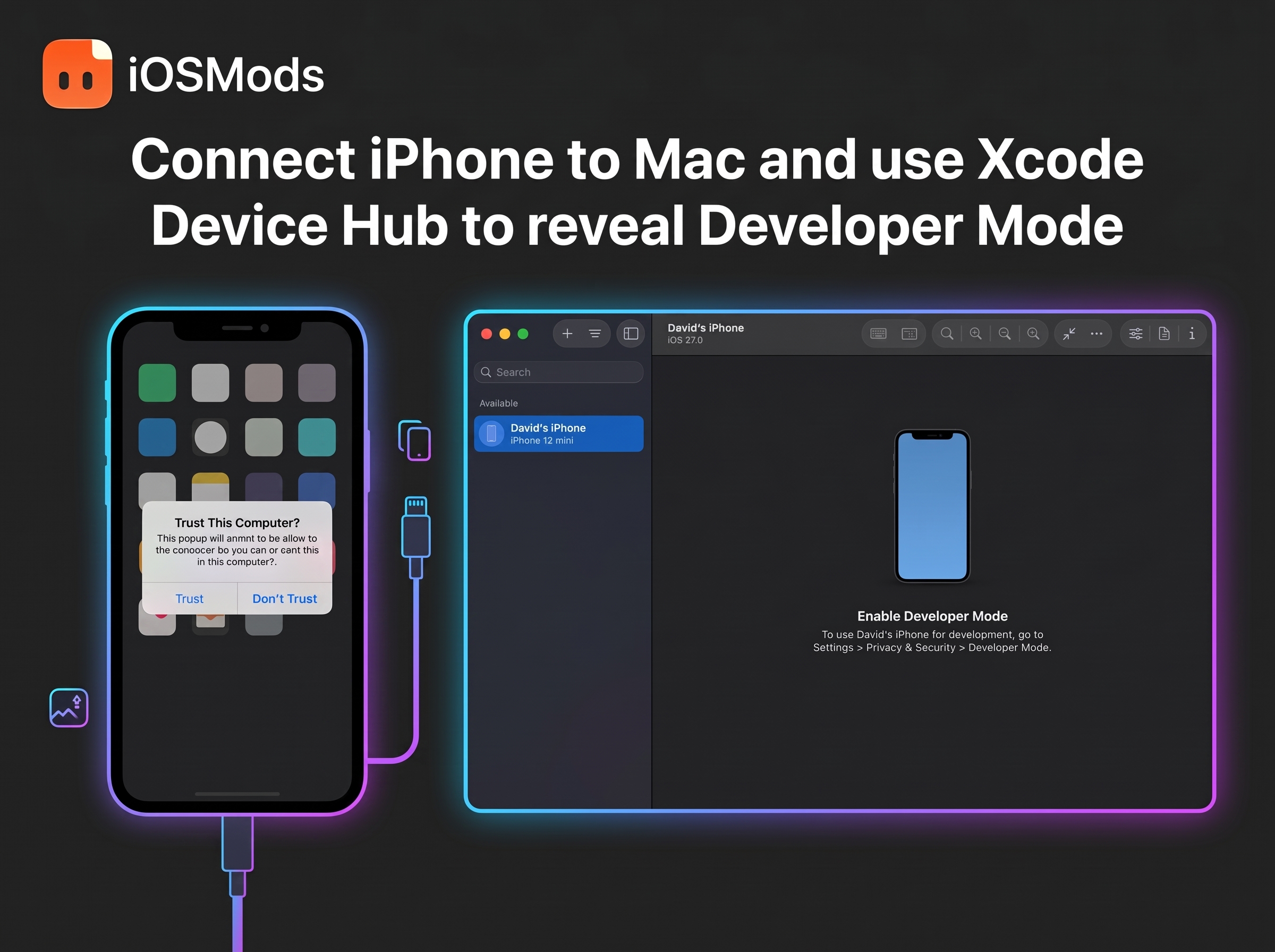
Steps to reveal Developer Mode using Xcode
- Download and install Xcode from the Mac App Store.
- Connect your iPhone to your Mac using a USB cable.
- If your iPhone displays the Trust This Computer? prompt, tap Trust and enter your passcode.
- Open Xcode and select Xcode > Open Developer Tool > Device Hub. In versions that use the older interface, look under Window > Devices and Simulators.
- Select your iPhone and follow any pairing instructions shown in Xcode.
- On your iPhone, open Settings > Privacy & Security and look for Developer Mode.
- Turn on the toggle, restart your iPhone, and confirm the prompt after restarting.
Once the process is complete, Developer Mode should be enabled.
Tip: If your iPhone doesn't appear in Xcode, check the cable connection, Trust prompt, and device compatibility before trying another method.
For more details, see Apple's Device Hub documentation.
How to Enable Developer Mode Without a Mac
Don't have a Mac? You may still be able to reveal the Developer Mode option directly on your iPhone.
This is particularly relevant if you've installed an app from iOS Mods and can't open it because Developer Mode is required.
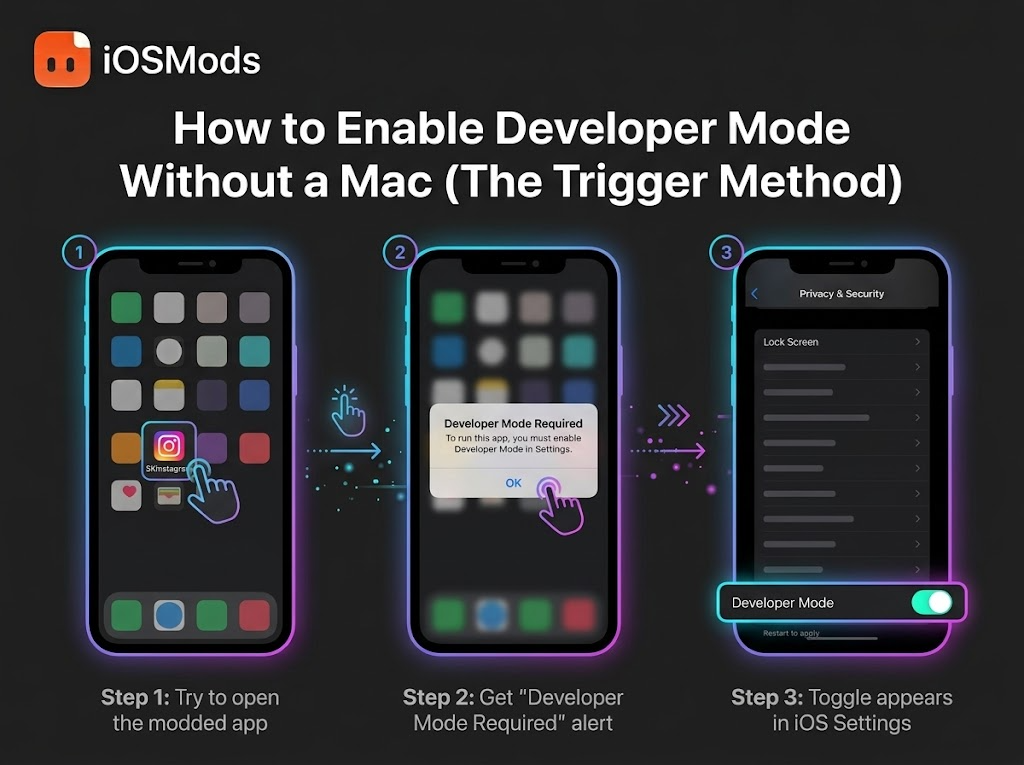
Method: Try launching the installed app
- Install the app you want to use from the iOS Mods library.
- Find the app on your iPhone's Home Screen and tap its icon.
- If iOS displays a "Developer Mode Required" alert, tap OK.
- Open Settings > Privacy & Security and check the bottom of the page for Developer Mode.
- If the option appears, turn it on and restart your iPhone.
- After restarting, confirm that you want to enable Developer Mode and enter your passcode if requested.
- Try opening the app again.
What if Developer Mode still doesn't appear?
Not every installation method triggers the setting in the same way. If you don't see the option after trying to open the app, don't keep reinstalling it or assume that your iPhone is faulty.
Instead, try the official Xcode method if you can access a Mac, or follow the Windows troubleshooting guidance below.
Important: An "Untrusted Developer" alert is different from a "Developer Mode Required" alert. If you see an Untrusted Developer message, follow the appropriate instructions for verifying the app's developer and signing status. Don't assume that enabling Developer Mode alone will resolve it.
Can You Enable Developer Mode on iPhone Using Windows?
If you don't have a Mac, you can still use a Windows PC to install apps on your iPhone. However, installing an app does not automatically enable Developer Mode or guarantee that the option will appear in Settings.
Avoid paying for software that promises to reveal Developer Mode with a single click unless you can verify that it supports your particular iOS version and installation method.
Apple's documented Xcode pairing method requires a Mac, so the available troubleshooting options differ when you're using Windows.
For users who need a reliable, officially documented route, using a Mac with Xcode remains the clearest option.
Frequently Asked Questions
Do I need a paid Apple Developer account to enable Developer Mode?
No. Enabling Developer Mode itself is free. You can use Xcode with a personal Apple Account for basic development tasks, but installing or distributing a particular app may have additional signing, provisioning, or account requirements.
Is Developer Mode available on iOS 16 and later?
Yes. Developer Mode was introduced in iOS 16 and remains available in later compatible versions. The exact interface may vary by iOS version.
Can I enable Developer Mode without a computer?
Yes, in supported circumstances. If you already have a compatible development build installed, launching it may prompt you to enable Developer Mode. However, this isn't guaranteed to work with every app or installation method.
Why does my iPhone show "Untrusted Developer" instead?
This warning is different from the Developer Mode Required alert. It generally relates to trusting or verifying the developer associated with an app. Follow the relevant on-device instructions and verify that you trust the app's source before proceeding.
Is Developer Mode safe?
Developer Mode is an Apple-provided feature intended for development and testing. It permits certain development workflows that are restricted by default. Only install apps from sources you trust, and don't enable developer features in response to instructions from an unknown source.
What should I do if Developer Mode is still missing?
First, check whether the app actually requires Developer Mode. If it does, try launching a compatible development build or using the official Xcode method. If you're installing an app from iOS Mods, the appropriate solution depends on how that app was built, signed, and installed.
Final Thoughts
If Developer Mode is missing from your iPhone, you don't necessarily need paid software to troubleshoot the issue.
Start by checking whether the option is already available. If it isn't, try launching the app you want to use and check Settings again. If that doesn't work, using a Mac with Xcode is the clearest officially documented alternative.
Remember that not every sideloaded app or installation method triggers the Developer Mode option. If the setting remains missing, use a supported development workflow rather than repeatedly reinstalling the same app.
- 10 Best Tweaked Apps for iPhone in 2026 (No Jailbreak) - iOS ModsLooking for the best tweaked apps for iPhone in 2026? The standard App Store offers plenty of great applications, but sometimes you want more features, extra customization options, or access to tools that aren't included in the regular versions.
- Spotify Premium for Free on iPhone: Pro vs V2 Edition - iOS ModsListen to Spotify without ads, unlock unlimited skips, and stream in extreme audio quality on your iPhone. Compare Spotify Pro and Spotify V2 to find your best iOS install.
- Upgrade Your Instagram Experience for Free on iPhone - iOS ModsDownload photos, videos, and audio in full quality to a passcode-locked gallery. Hide ads and Meta AI, view stories in Ghost Mode, see who unfollowed you, and keep deleted messages. No PC or jailbreak.